
Uncover Your Windows Laptop's True Battery Health with a Simple Command
You can now generate a detailed report on your laptop's battery status. This method reveals its current capacity and helps anticipate degradation.
Windows laptop users now have a powerful tool to understand their battery's health. A straightforward command generates a comprehensive report, revealing crucial data about the component's real capacity and wear. This information is essential for extending your device's lifespan and making informed maintenance decisions.
While Windows offers a basic view of battery status, like the remaining charge percentage in the system tray, this information is often superficial. For a precise diagnosis, we need to look beyond the immediately visible data. Knowing both the design capacity and the current full charge capacity is key to assessing degradation accurately.
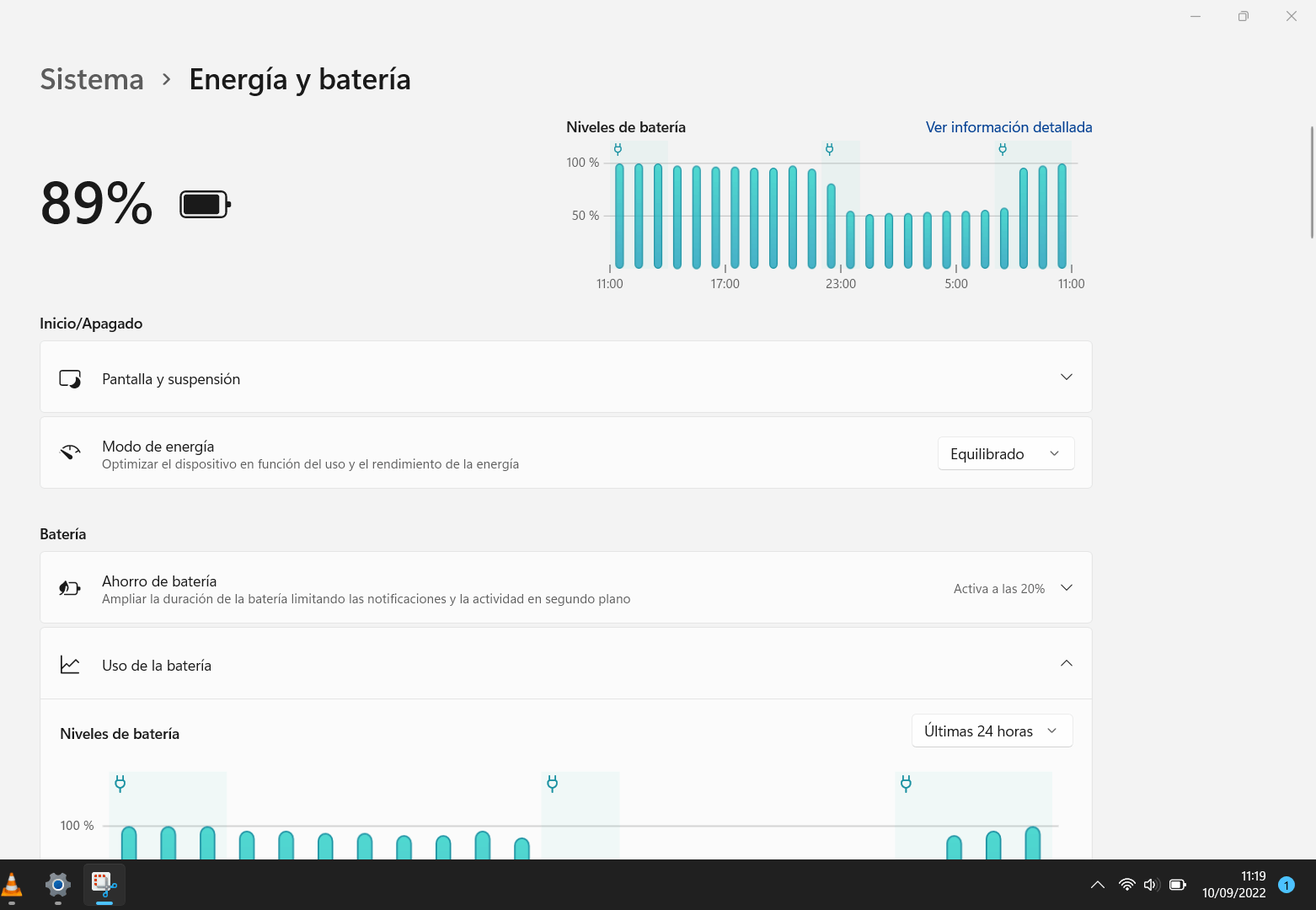
Some intermediate avenues exist for obtaining information. For instance, Device Manager, under the “Batteries” section, shows if the hardware is being recognized correctly. Also, within Windows Settings, under “System” and then “Power & battery,” you can view a recent energy consumption history. These data points are useful, but they do not offer the level of detail required for a deep analysis.
To access the full report, you must use Windows Terminal or PowerShell. Open either application and execute the command powercfg /batteryreport. This process will generate an HTML file containing a detailed history and technical metrics about your battery's performance. The Terminal will indicate the specific path where the file is saved.
A straightforward command generates a comprehensive report, revealing crucial data about the component's real capacity and wear.
Once you open the HTML file, you will find several important sections. The most relevant is “Installed Battery,” where you will see two key values expressed in milliwatt-hours (mWh):
Design Capacity: This is the battery's original capacity when it left the factory.
Full Charge Capacity: This represents the maximum capacity your battery can currently hold.
Comparing these two figures will give you a clear idea of how much the battery has degraded over time. A significant difference indicates considerable wear.
The report also includes other valuable sections. “Recent Usage” details charge and discharge cycles, along with the device's activity states. “Battery Usage” displays a graph of daily consumption, helping you identify patterns or applications that might be accelerating wear. Finally, “Battery Capacity History” allows you to see the evolution of the maximum capacity over time, revealing degradation trends.
Understanding this data empowers you to make smarter decisions. You can adjust your charging habits, optimize power usage, and ultimately extend your laptop's lifespan. Know your battery and keep your device running at its best!
Article topics
Related articles

Windows Drops NTLM: Microsoft Boosts Security with Kerberos
Microsoft is taking a crucial step to bolster security in Windows 11, announcing the deprecation of NTLM, its oldest authentication protocol, in favor of Kerberos.

Chrome Bolsters Security with DBSC Against Cookie Theft
Google Chrome has rolled out a new DBSC feature, linking sessions to your hardware to protect accounts from credential theft attacks.

Roku's home screen gets an AI-powered refresh for 2026
Roku is rolling out a significant update to its main interface, promising a more personalized experience with integrated advertising.
Latest news
View all
Stuntman Hollywood: Returns After 19 Years to PS5, Xbox Series, and PC
The iconic action and vehicular stunt franchise makes its comeback courtesy of Saber Interactive, promising a dose of nostalgia and adrenaline for the new generation.

NASA's Maven Mars Orbiter Declared Out of Service After Six Months of Silence
Following an anomaly that disrupted its orbit and depleted its batteries, the Maven spacecraft, vital for understanding Mars' atmosphere, has ended its active mission. Its scientific data remains an invaluable legacy.

NASA Reveals New Path for Earth's Essential Life Elements
A recent study, published in Science Advances, uncovers how early Earth may have received phosphorus and nitrogen, highlighting Jupiter's critical role.
Comments (0)
No comments yet. Be the first!
Leave a comment